
You can deposit funds into your Orbis Securities Wallet using a supported debit or credit card.
Follow the steps below to enter your deposit request, complete the card payment, and check the processing status.
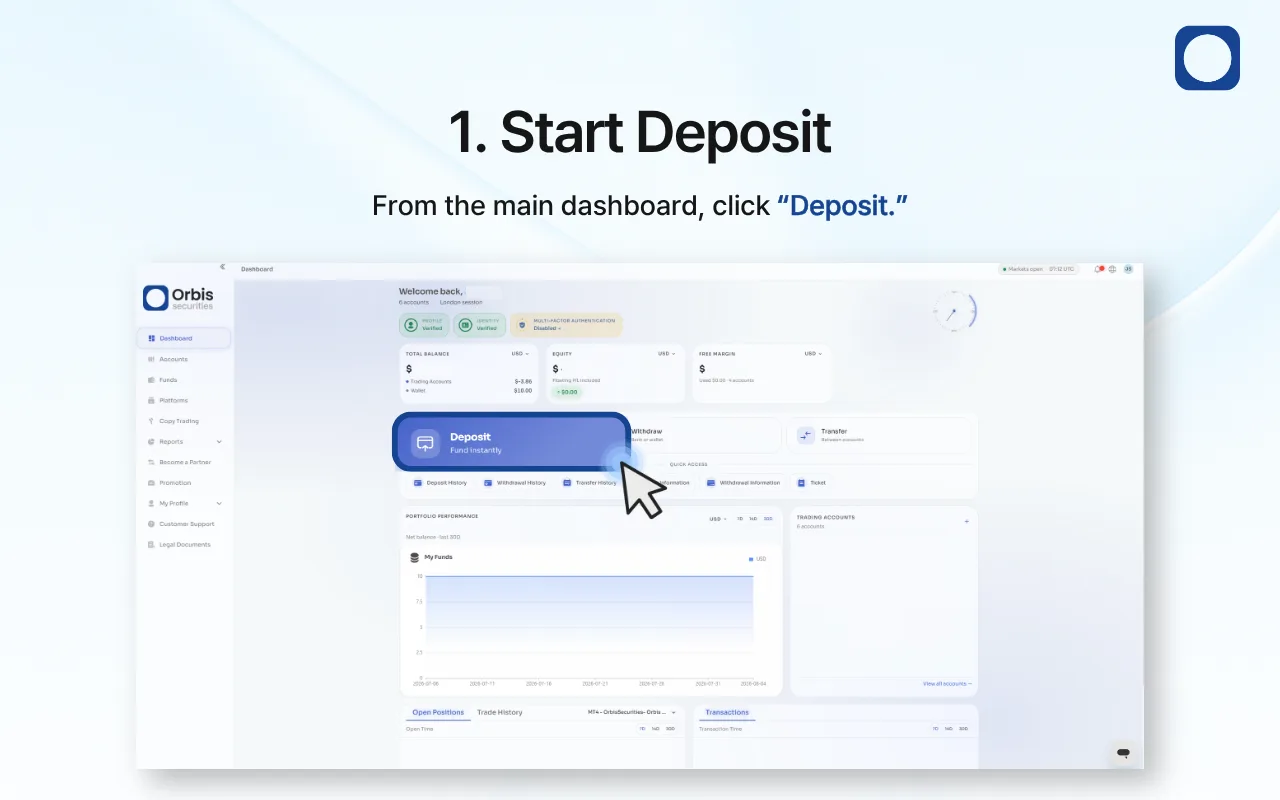
1. Start a Deposit
Sign in to the Orbis Securities Client Portal and go to the main dashboard.
Click “Deposit” to open the available deposit methods.
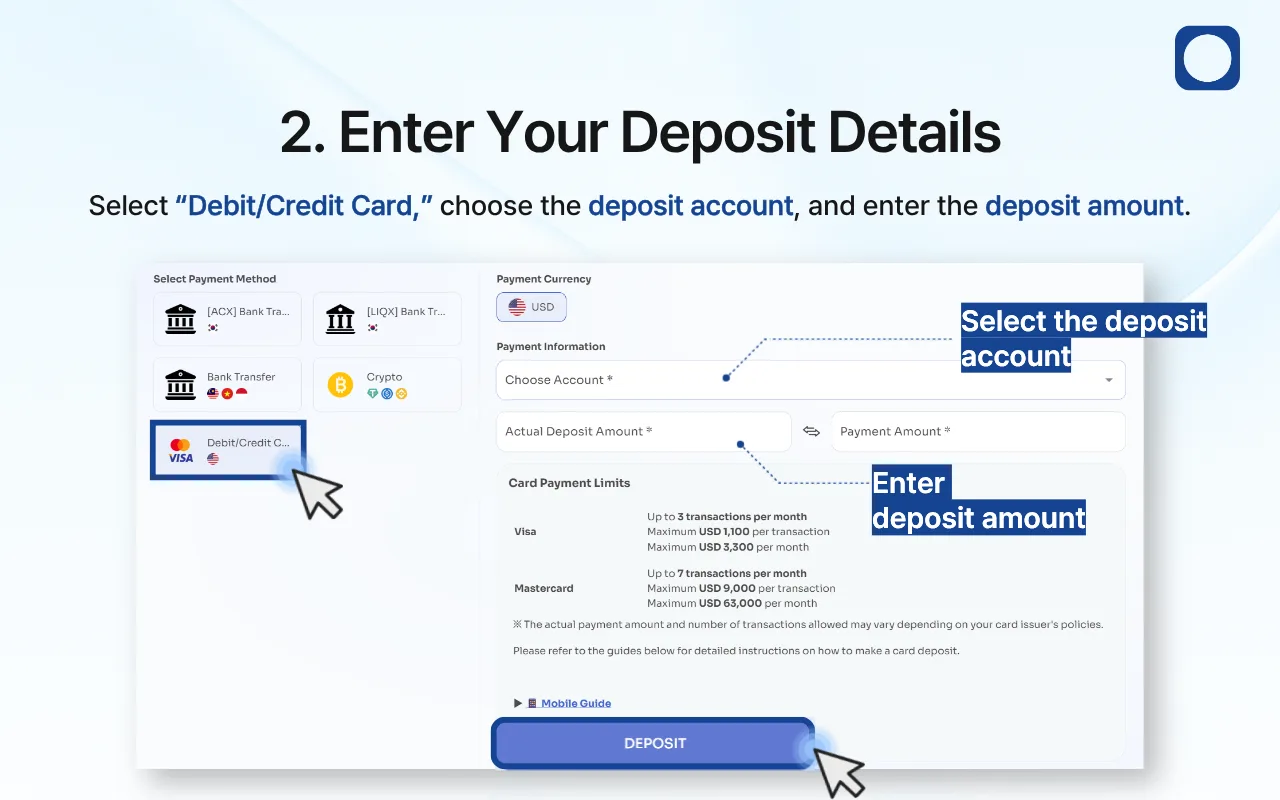
2. Enter Your Deposit Details
Select “Debit/Credit Card” as the payment method.
Complete the following fields:
Deposit Account: Select the Orbis Securities Wallet to which you want to deposit the funds.
Actual Deposit Amount: Enter the amount you wish to add to your Wallet.
Payment Amount: Check the amount that will be charged to your card.
The payment currency displayed on the page is the currency used to process the card payment. If your card uses a different currency, your card issuer may apply its own exchange rate or currency conversion fee.
Review the card payment limits displayed on the page. The available limits may vary by card type.
The example screen shows the following limits:
Visa: Up to 3 transactions per month, with a maximum of USD 1,100 per transaction and USD 3,300 per month
Mastercard: Up to 7 transactions per month, with a maximum of USD 9,000 per transaction and USD 63,000 per month
The actual number of transactions and payment amount allowed may vary depending on your card issuer’s policies.
After checking all information, click “Deposit.”
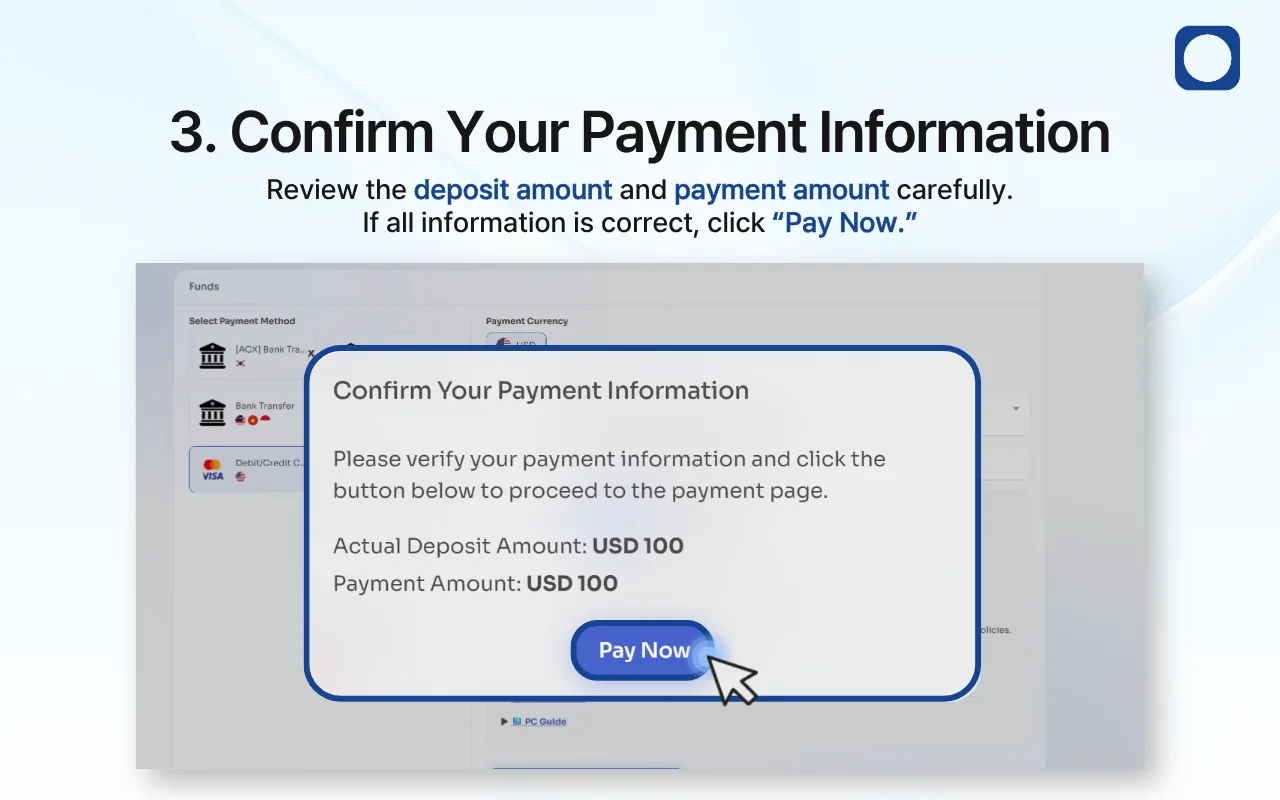
3. Confirm Your Payment Information
A confirmation window will display the following information:
Actual Deposit Amount
Payment Amount
Payment Currency
Review both amounts carefully before proceeding. The actual deposit amount is the amount requested for your Orbis Securities Wallet, while the payment amount is the amount charged through the card payment service.
If all information is correct, click “Pay Now” to continue to the secure card payment page.
If the amount is incorrect, close the confirmation window and update your deposit request before continuing.
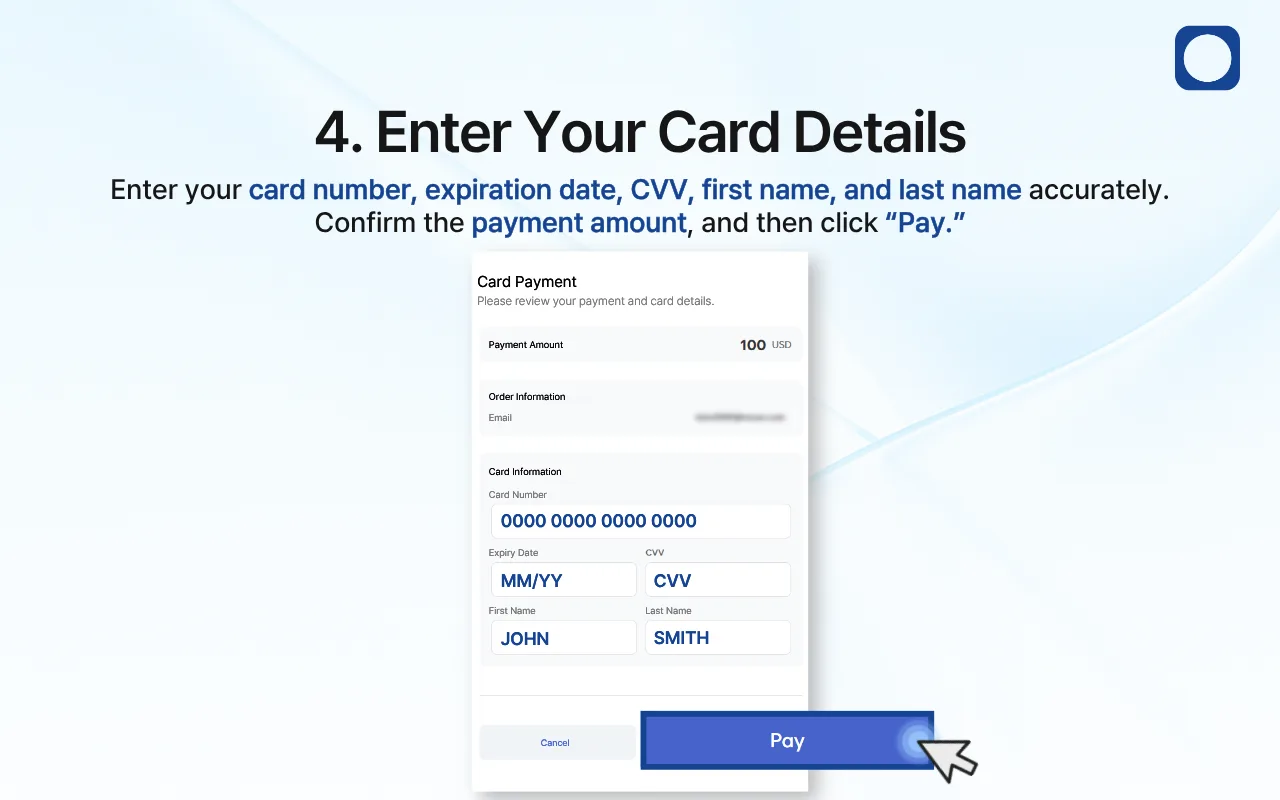
4. Enter Your Card Details
On the card payment page, confirm the payment amount and enter the requested card information:
Card Number
Expiration Date in MM/YY format
CVV
First Name
Last Name
Enter the details exactly as they appear on the card and in your card issuer’s records.
Before clicking “Pay,” check that:
The card number is correct.
The card has not expired.
The CVV has been entered correctly.
The cardholder’s first and last names are accurate.
The payment amount is correct.
Click “Pay” to submit the card payment.
Your card issuer may require an additional security step, such as a one-time password, mobile app approval, or 3D Secure authentication. Complete any instructions provided by your card issuer.
Do not close or refresh the payment page while the transaction is being processed.
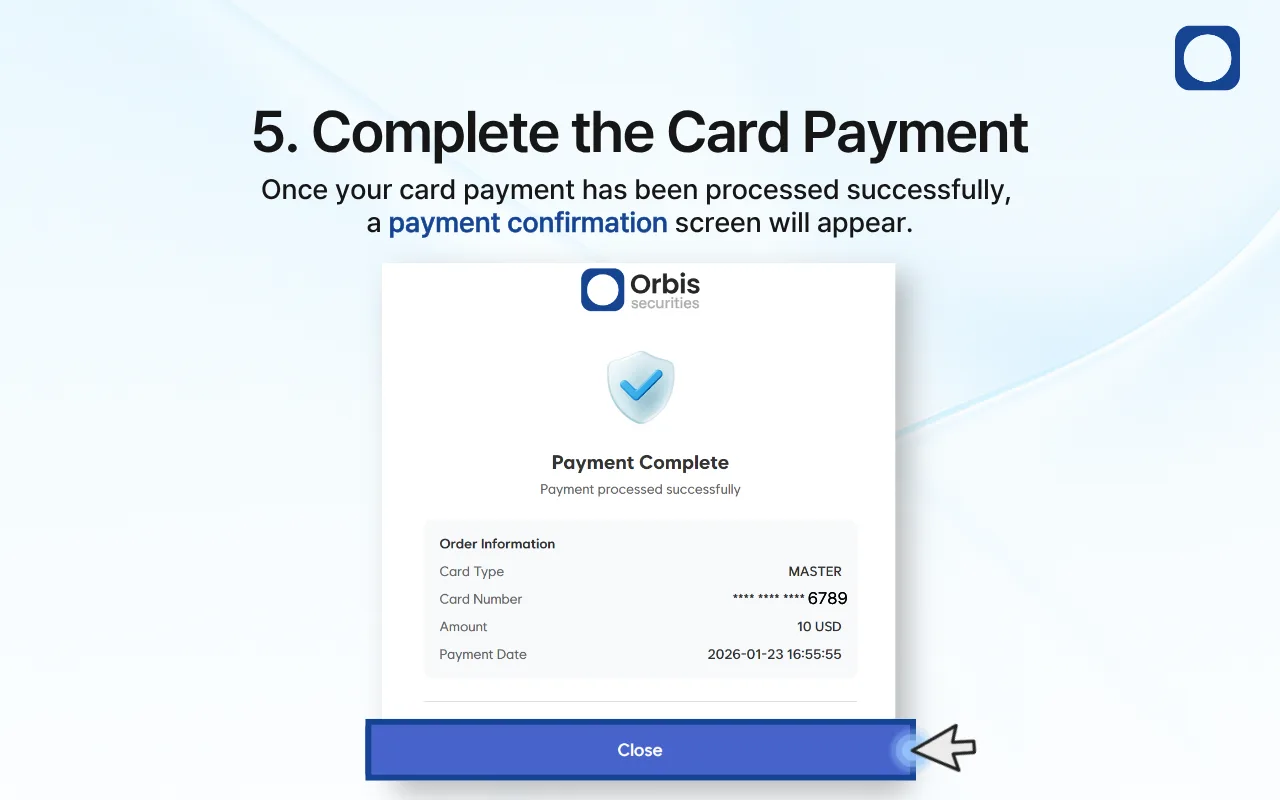
5. Complete the Card Payment
When the card payment has been processed successfully, a “Payment Complete” screen will appear.
The confirmation screen may display:
Card Type
Masked Card Number
Payment Amount
Payment Date
Review the displayed information and click “Close” to return to the Client Portal.
A successful card payment does not necessarily mean that the deposit has already been credited to your Wallet. The deposit request may remain pending while it is being processed or reviewed.
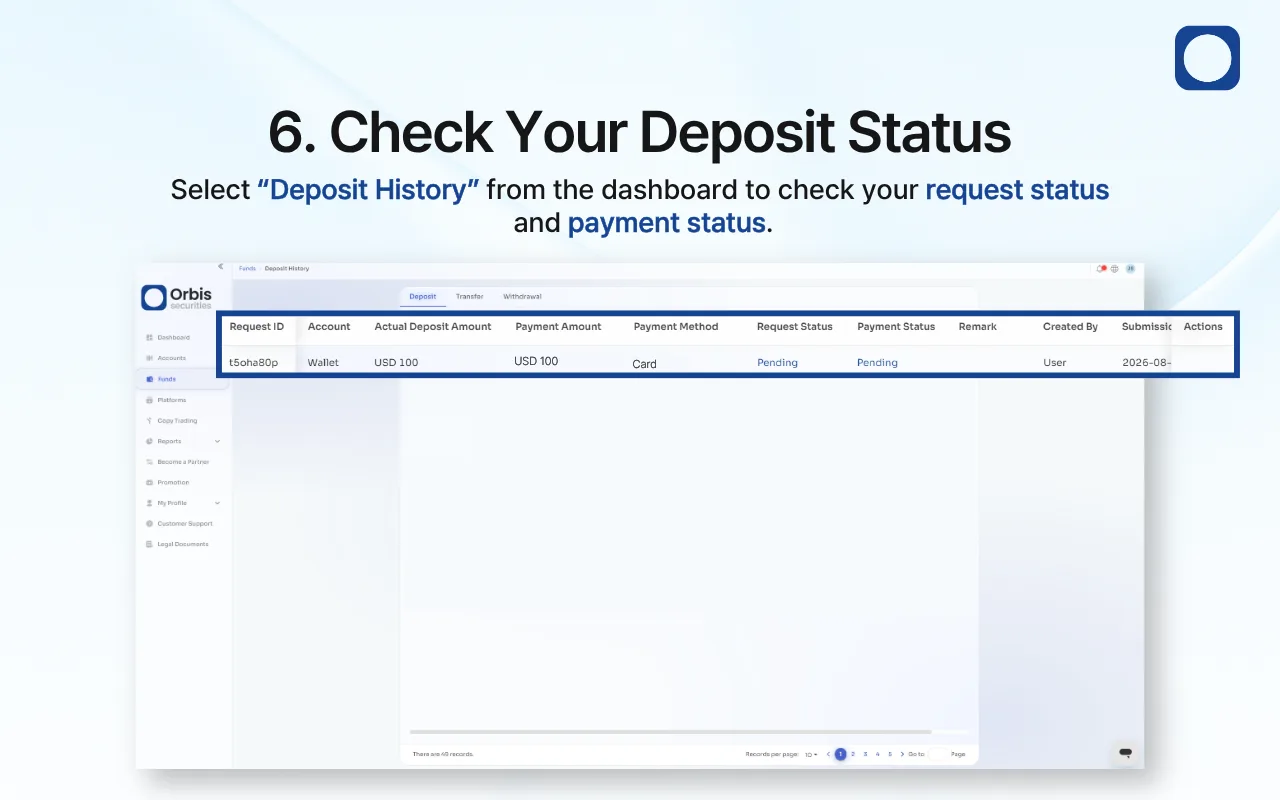
6. Check Your Deposit Status
To check your deposit, select “Deposit History” from the dashboard.
Your deposit may initially appear as “Pending.” This means that the request or payment is still being processed.
Check both the Request Status and Payment Status, as they may update separately.
Avoid submitting the same payment repeatedly while an existing request is pending. If the card was charged but the status does not update, keep the Request ID and payment confirmation details for reference and contact Customer Support.
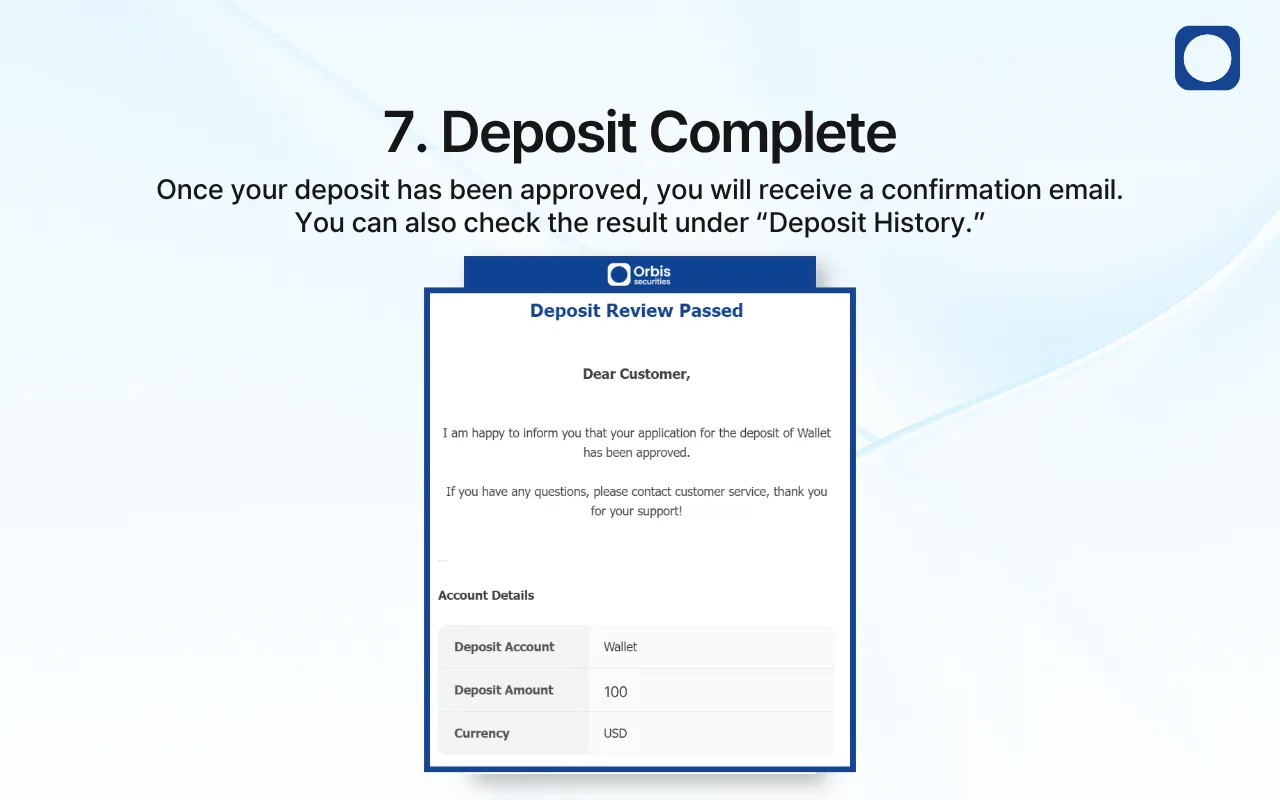
7. Deposit Complete
Once the deposit has been approved, you will receive a confirmation email at your registered email address.
You can also confirm the completed deposit under “Deposit History” and check whether the funds have been credited to your Wallet.
If the confirmation email is not visible, check your spam or junk folder.