
If you have forgotten your Orbis Securities Client Portal password, you can reset it using the email address registered to your account.
Please follow the steps below.
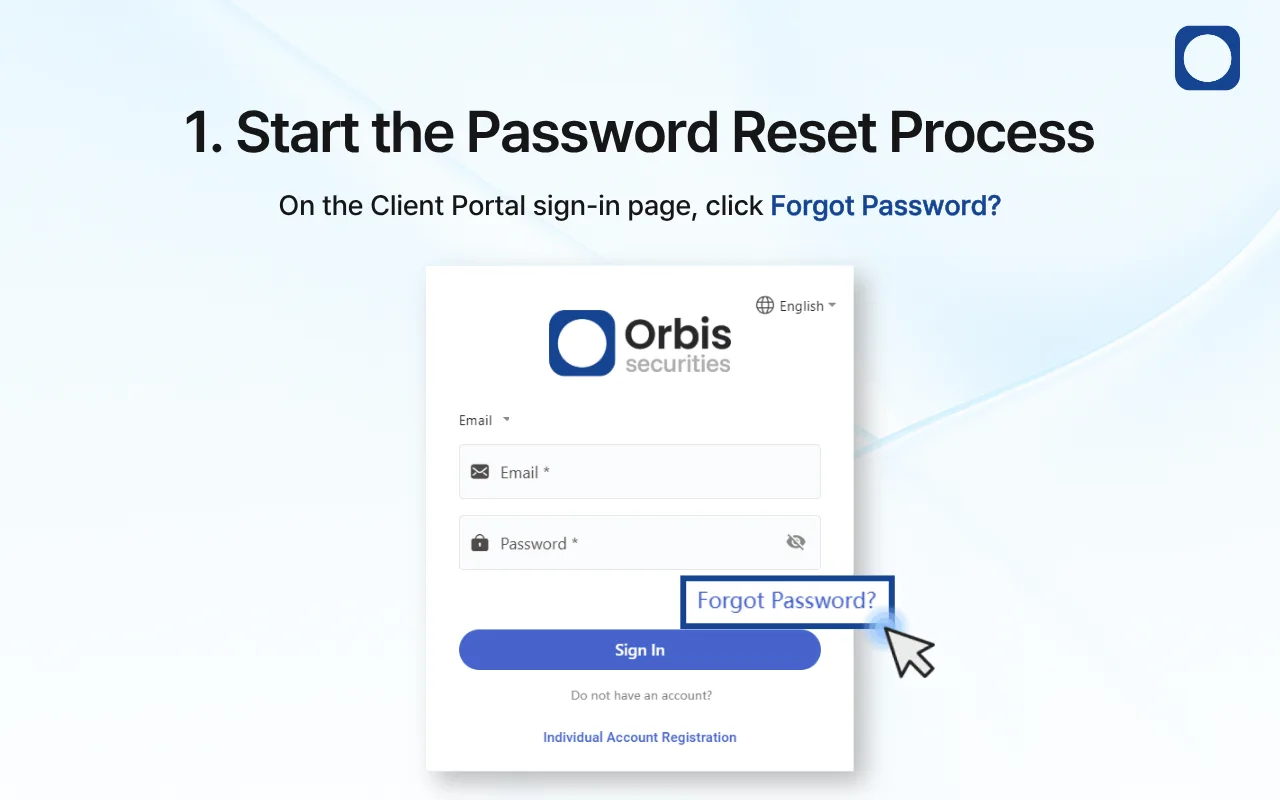
1. Start the Password Reset Process
Go to the Orbis Securities Client Portal sign-in page.
Click Forgot Password? below the password field to begin the reset process.
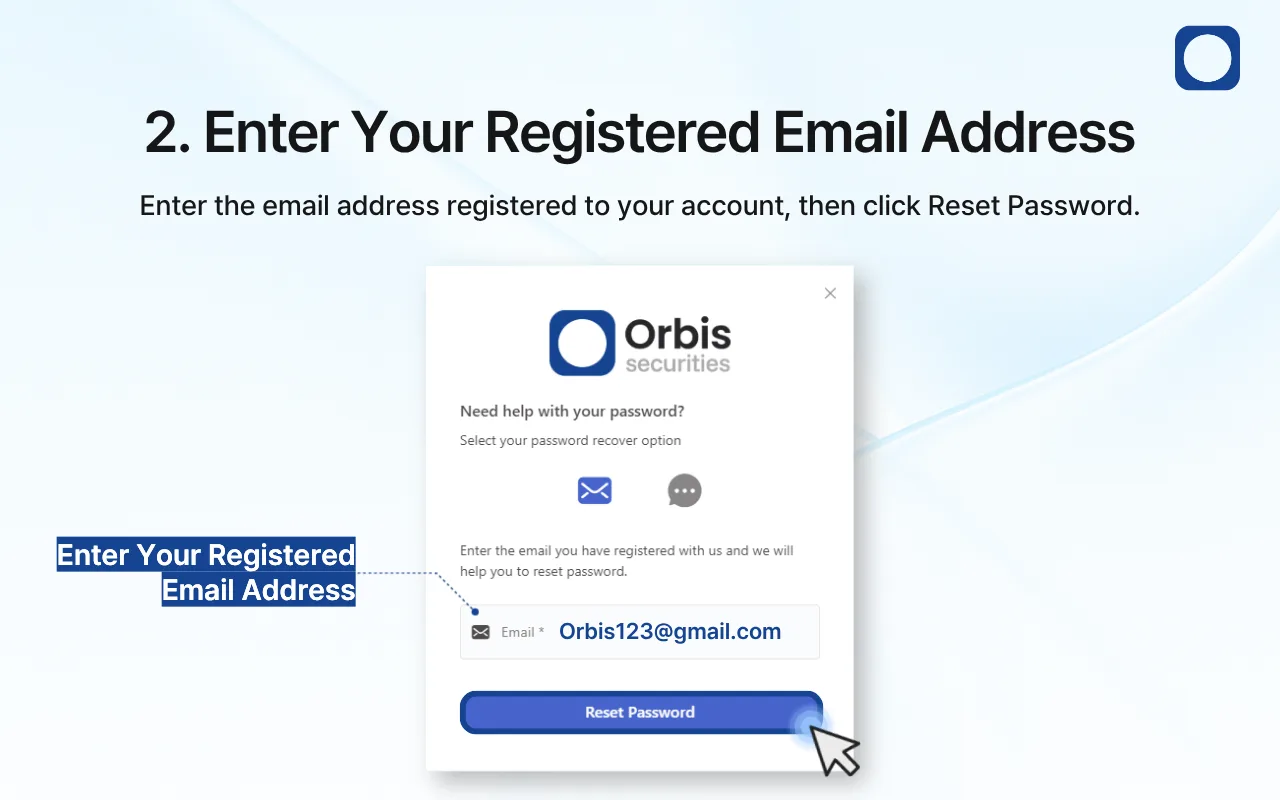
2. Enter Your Registered Email Address
Select the email recovery option.
Enter the email address registered to your account, then click Reset Password.
The email address must match the one associated with your Orbis Securities account.
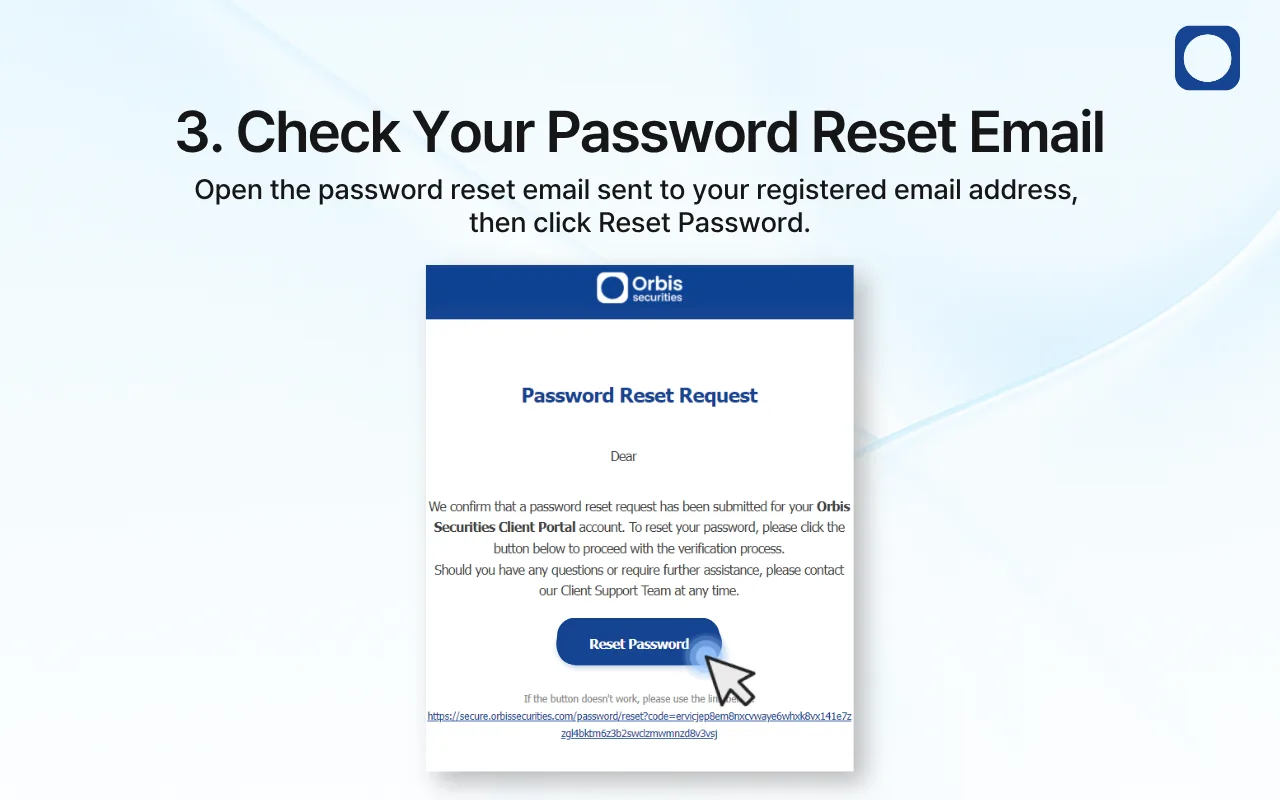
3. Check Your Password Reset Email
Check your inbox for a Password Reset Request email from Orbis Securities.
Open the email and click Reset Password to access the password reset page.
If you cannot find the email, check your spam, junk, or promotions folder.
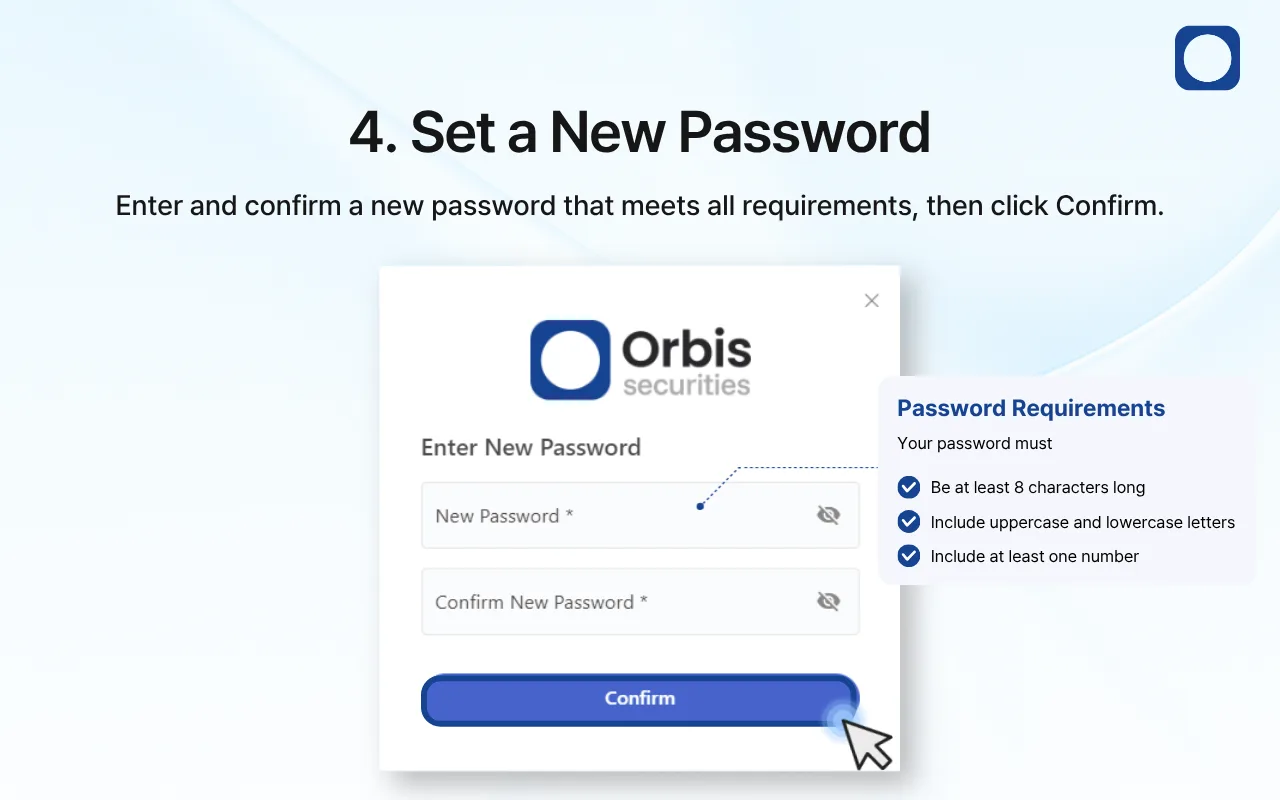
4. Set a New Password
Enter your new password in the New Password field, then enter it again in the Confirm New Password field.
Your new password must:
Be at least 8 characters long
Include uppercase and lowercase letters
Include at least one number
Once both passwords match and all requirements have been met, click Confirm.
After resetting your password, return to the Client Portal and sign in using your registered email address and new password.
Important Notes
If the password reset link has expired or is invalid, submit a new password reset request.
If you no longer have access to your registered email address, contact the Customer Support team for assistance.
Do not share your password reset email or link with anyone.