
Identity verification, also known as Know Your Customer (KYC), is required to confirm your identity and provide access to Orbis Securities services.
During the verification process, you will be asked to submit an identity document, provide proof of your residential address, and complete a liveness check. Please follow the steps below in order.
Before you begin, prepare:
A valid government-issued identity document
A valid proof-of-address document
A mobile device with a working camera
A stable internet connection
For the best results, complete the process in a well-lit area and make sure that all submitted information is clear and accurate.
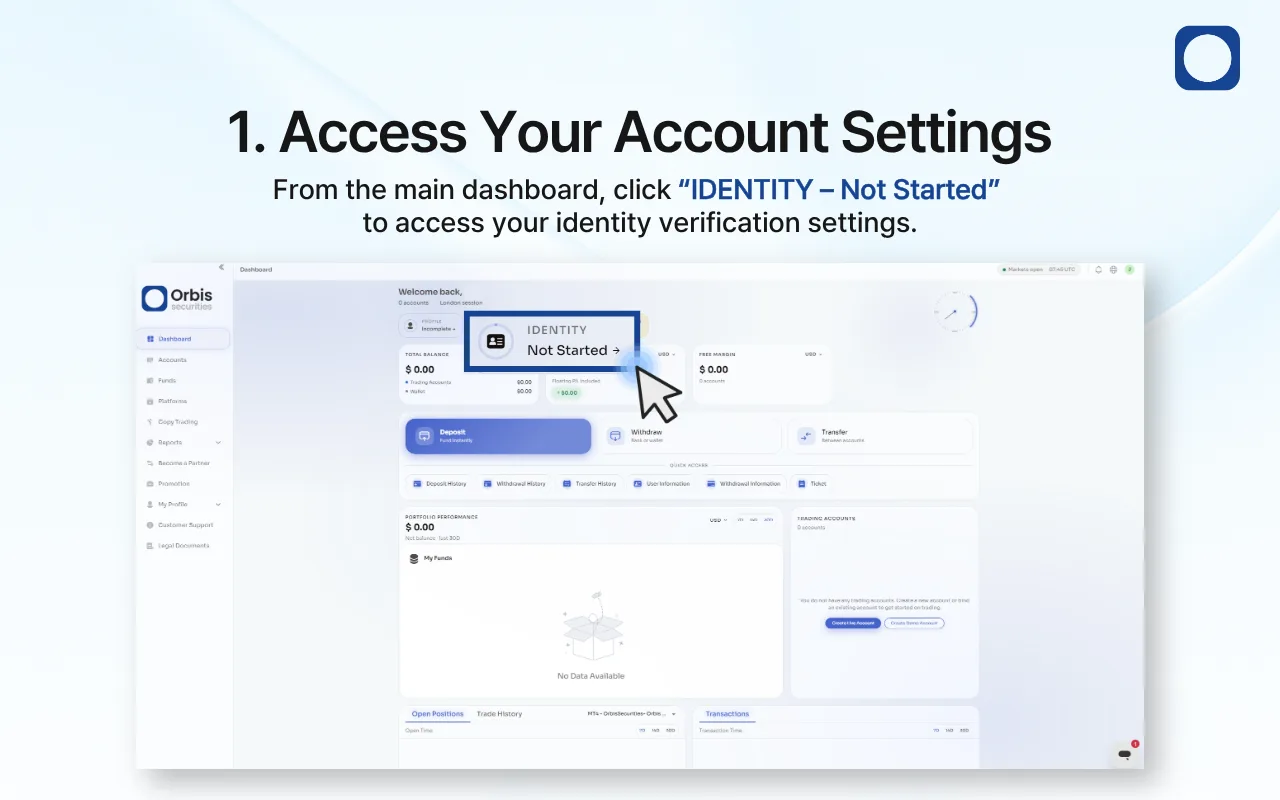
1. Access Your Account Settings
Sign in to your Orbis Securities account and go to the main dashboard.
Find the “IDENTITY – Not Started” section near the top of the dashboard and click it to access your identity verification settings.
If your verification has already been started, a different status may be displayed. Click the identity section to continue from where you left off.
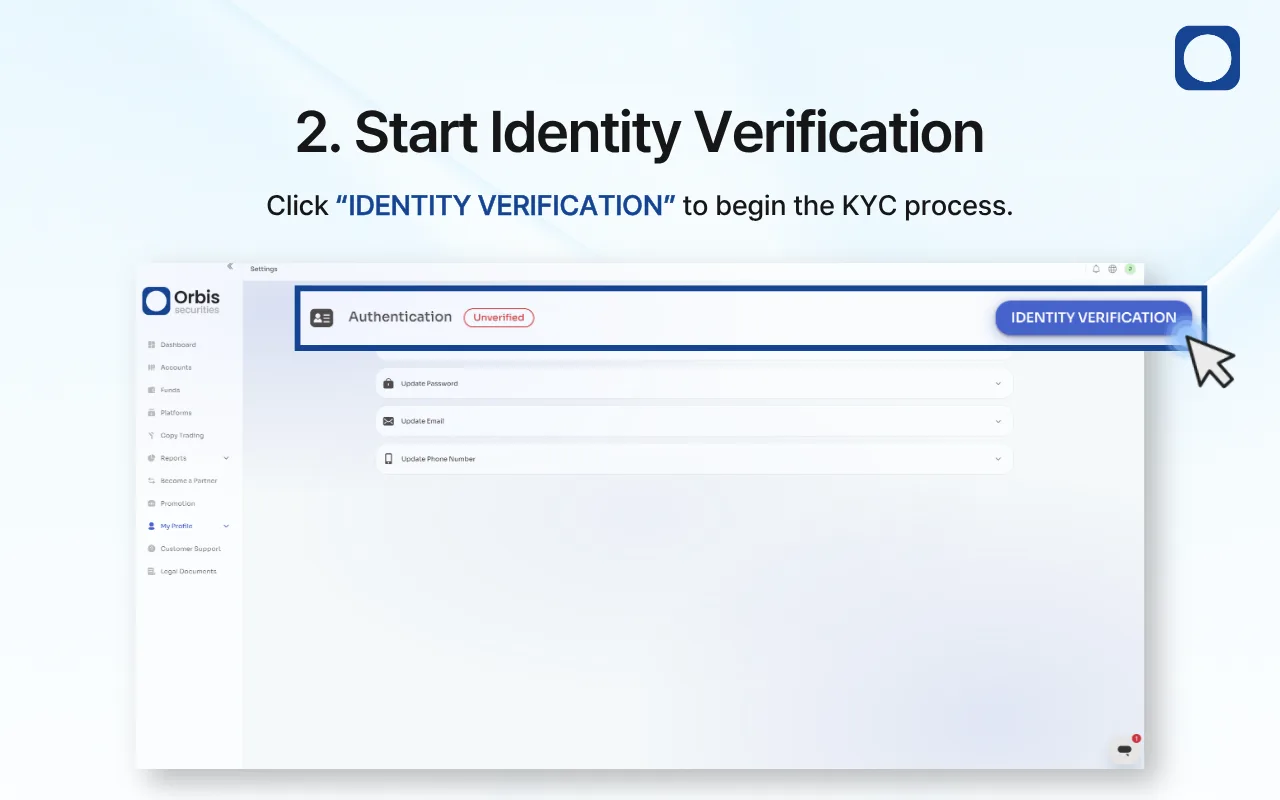
2. Start Identity Verification
The account settings page will display your current authentication status as “Unverified.”
Click “IDENTITY VERIFICATION” to begin the KYC process. A separate verification window provided by Sumsub will open.
Do not close your Orbis Securities page while completing the verification process.
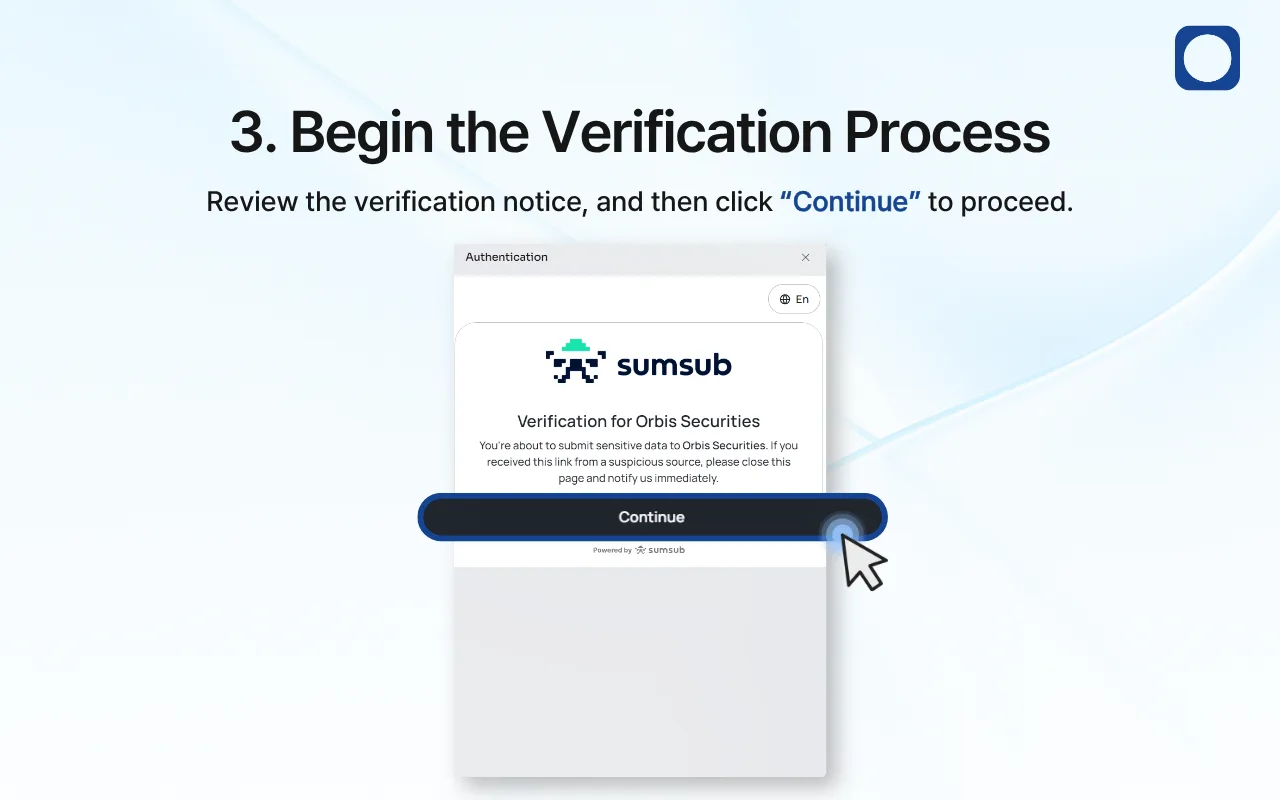
3. Begin the Verification Process
Review the verification notice displayed in the Sumsub window.
Make sure the verification request is for Orbis Securities, and then click “Continue” to proceed.
If you received the verification link from an unknown or suspicious source, close the page and contact Orbis Securities Customer Support before submitting any personal information.
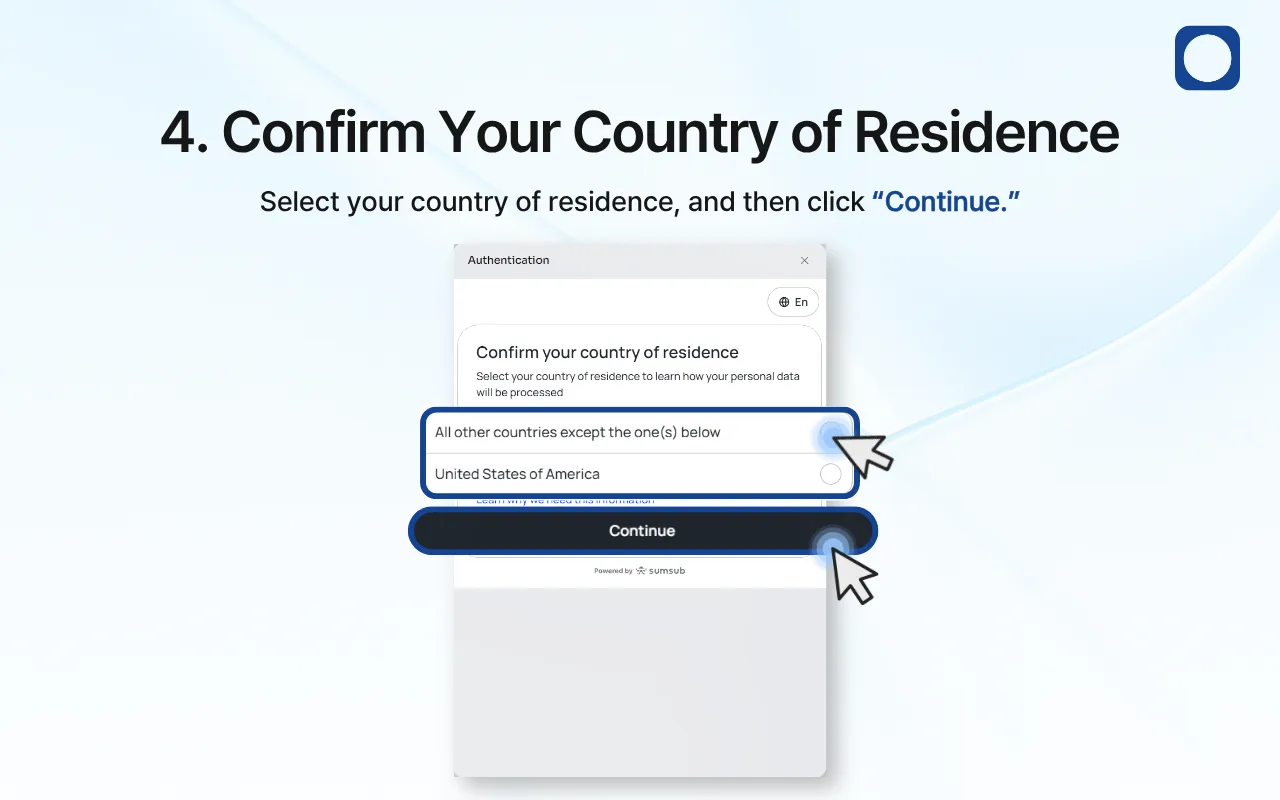
4. Confirm Your Country of Residence
Select your current country of residence.
If you reside in the United States, select “United States of America.” Otherwise, select “All other countries except the one(s) below.”
Your selection may affect how your personal information is processed. Review any information provided on the screen, and then click “Continue.”
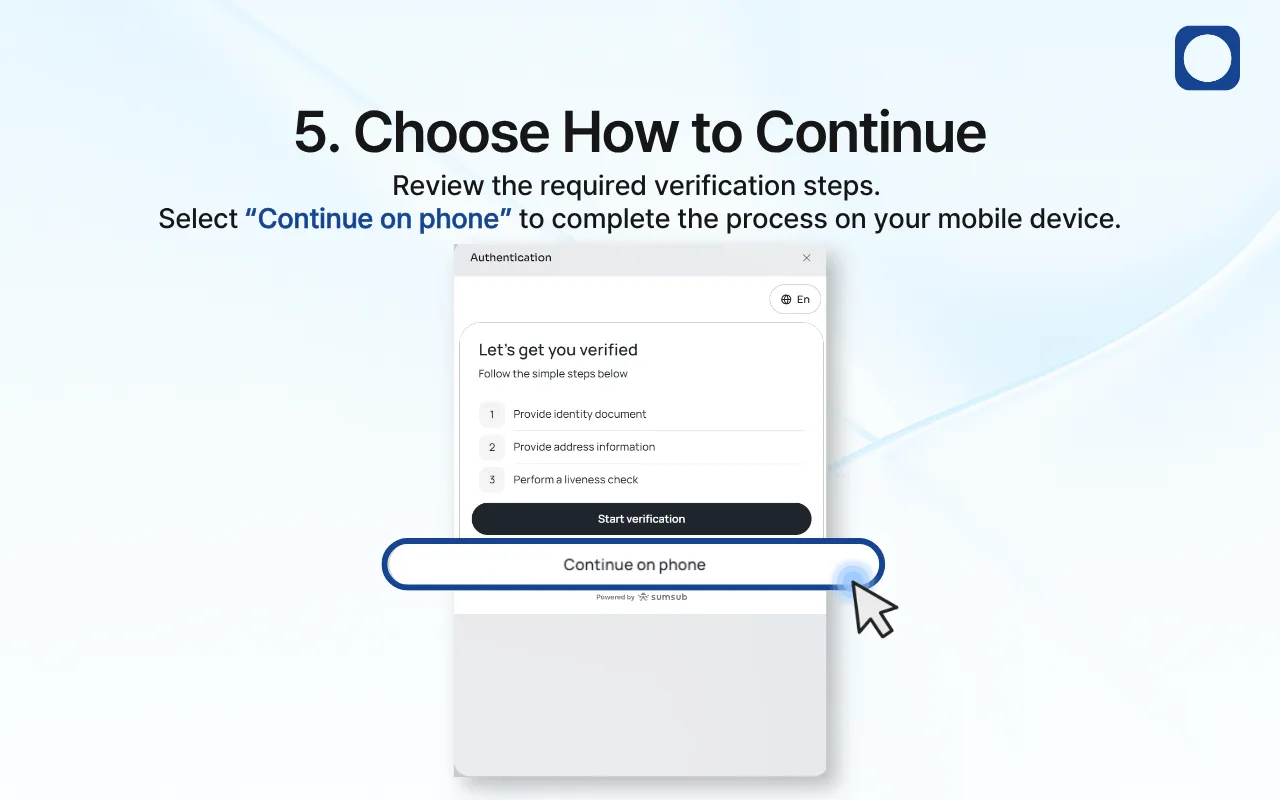
5. Choose How to Continue
The screen will display the three main verification requirements:
Provide an identity document
Provide proof of address
Complete a liveness check
You can complete the verification on your current device or continue on a mobile phone.
To use your mobile phone, select “Continue on phone.” Using a mobile device is recommended because you will need to photograph your identity document and complete a camera-based liveness check.
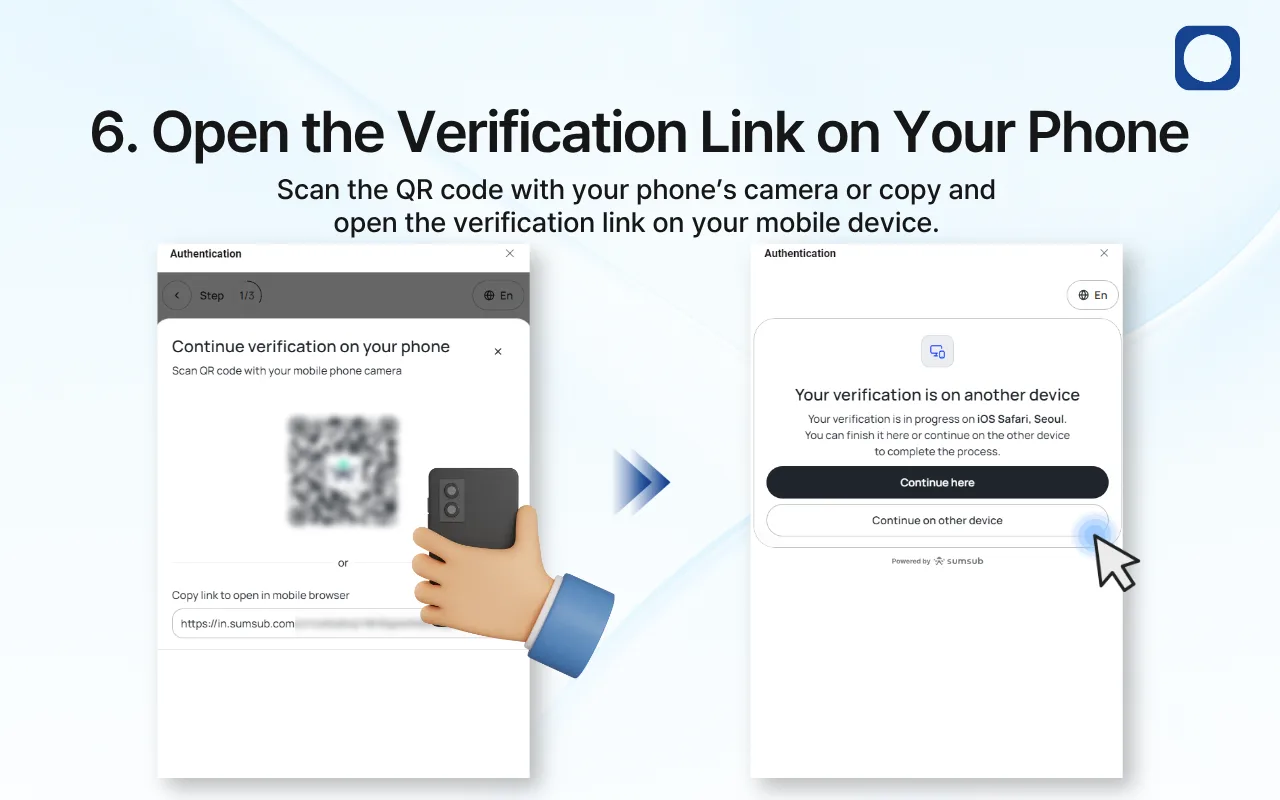
6. Open the Verification Link on Your Phone
A QR code and verification link will appear on the screen.
Use one of the following methods to open the verification page on your mobile device:
Scan the QR code using your phone’s camera.
Copy the verification link and open it in your mobile browser.
After opening the link on your phone, your original device will show that verification is in progress on another device.
Select “Continue on other device” and complete the remaining steps on your phone. Do not close the verification page until the process is complete.
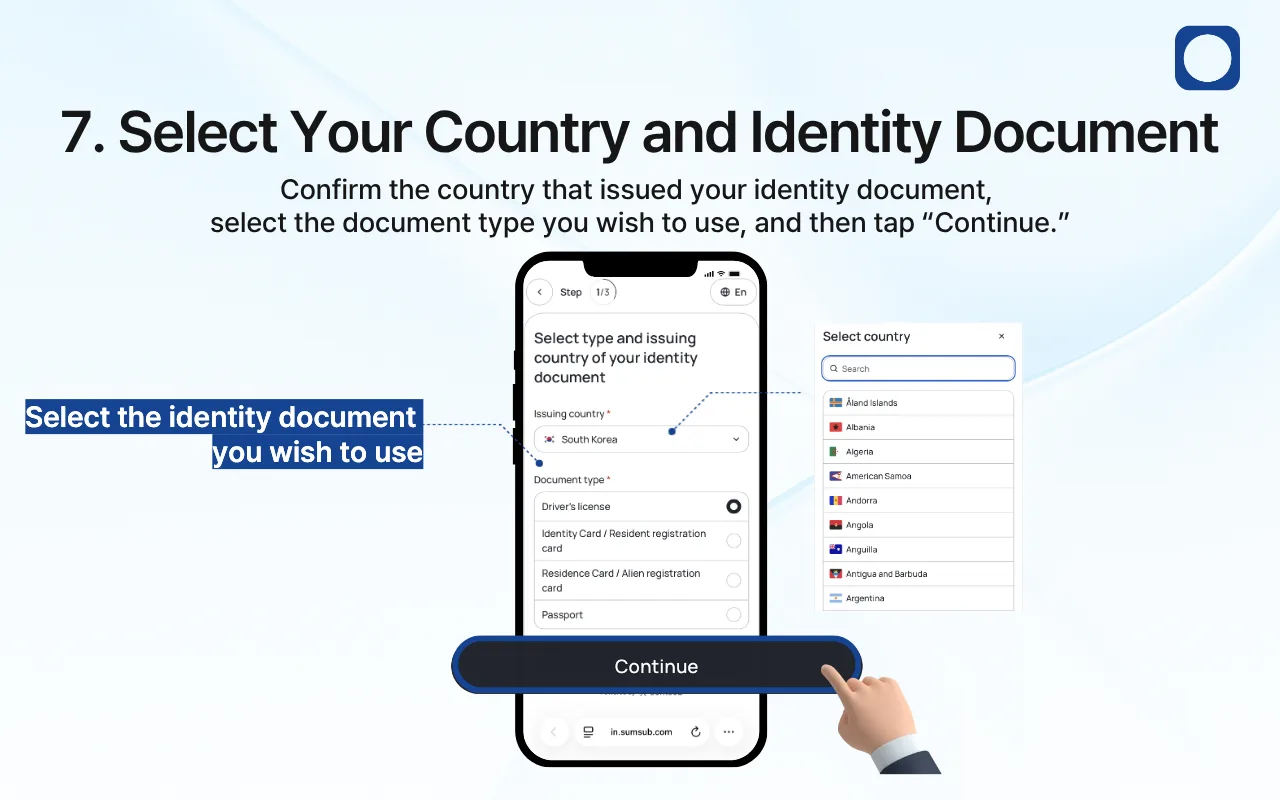
7. Select Your Country and Identity Document
Confirm the country that issued your identity document.
This may be different from your current country of residence.
Next, select the type of identity document you wish to use. The available options may include:
Driver’s license
Identity card or resident registration card
Residence card or alien registration card
Passport
Use a valid, unexpired, government-issued document. The document must belong to you, and the information on it must match the information registered with your Orbis Securities account.
After confirming the issuing country and document type, tap “Continue.”
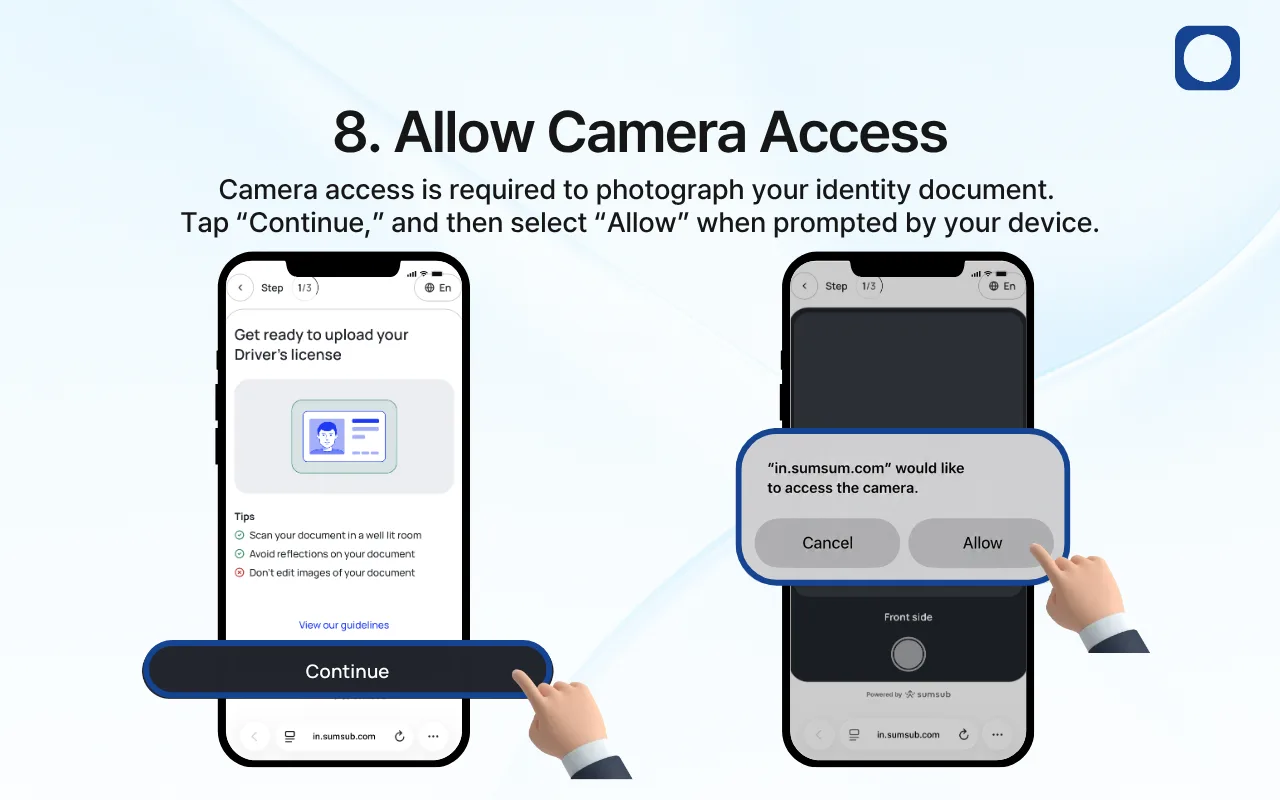
8. Allow Camera Access
Before photographing your identity document, review the document-capture guidelines displayed on the screen.
For a successful submission:
Place the document in a well-lit area.
Avoid glare, shadows, and reflections.
Make sure the document is not covered.
Do not edit, crop, or digitally alter the image.
Make sure all four corners of the document are visible.
Tap “Continue.” When your mobile device requests permission to use the camera, select “Allow.”
Camera access is required to photograph your identity document and complete the liveness check.
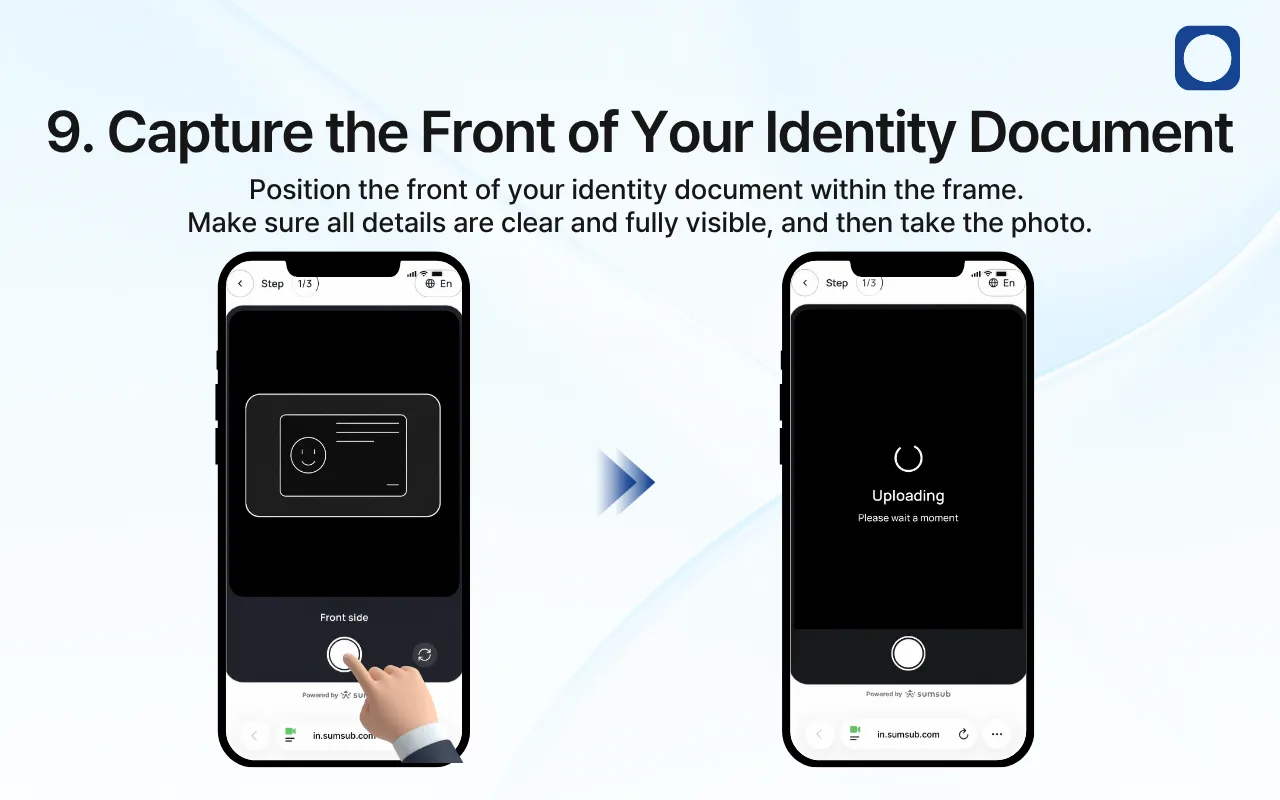
9. Capture the Front of Your Identity Document
Place the front of your identity document within the on-screen frame.
Make sure that:
The entire document is visible.
All text and numbers are clear and readable.
Your photograph is clearly visible.
There is no glare or reflection.
No part of the document is blurred, cropped, or covered.
Hold your phone steady and tap the capture button. Wait while the image is uploaded.
If the image does not meet the verification requirements, you may be asked to take another photo.
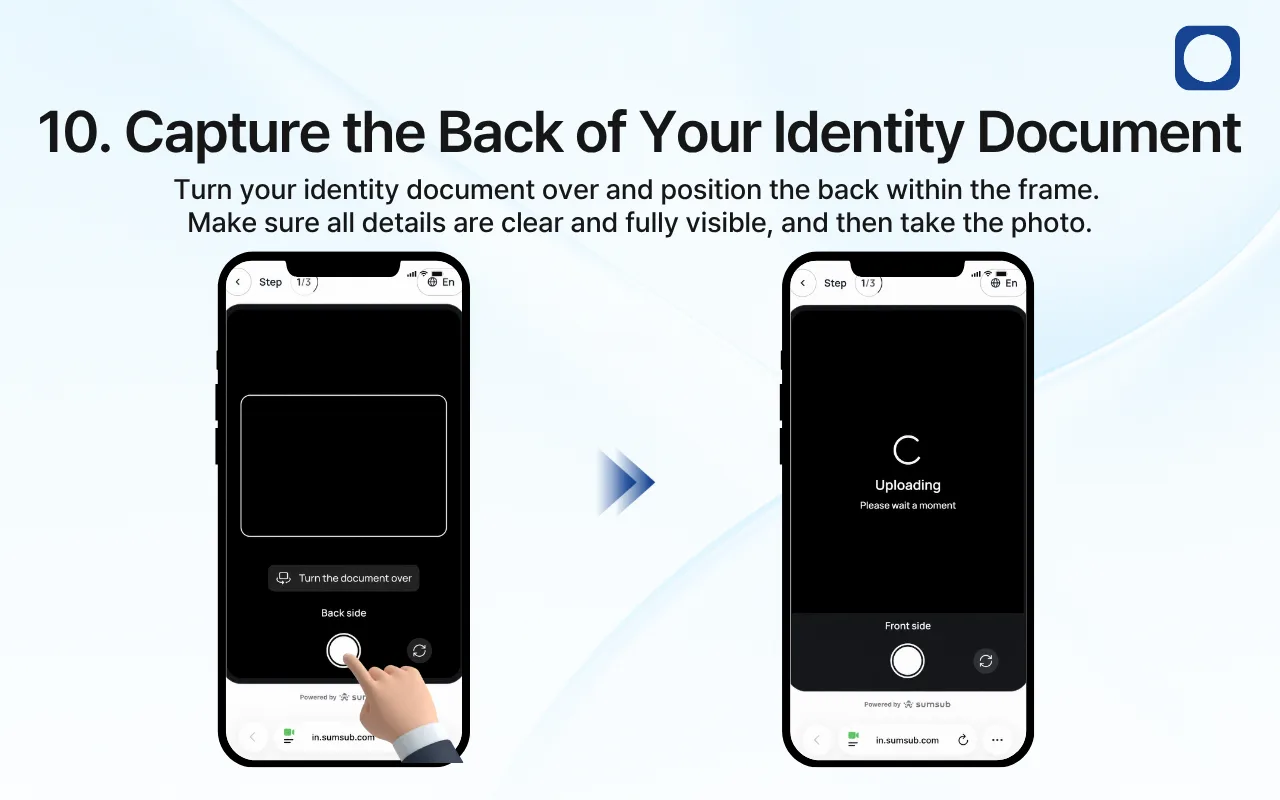
10. Capture the Back of Your Identity Document
If your selected document has information on both sides, turn it over and place the back within the on-screen frame.
Make sure all details are clear, readable, and fully visible. Then tap the capture button and wait for the image to upload.
This step may not appear when using a passport or another document that does not require an image of the reverse side.
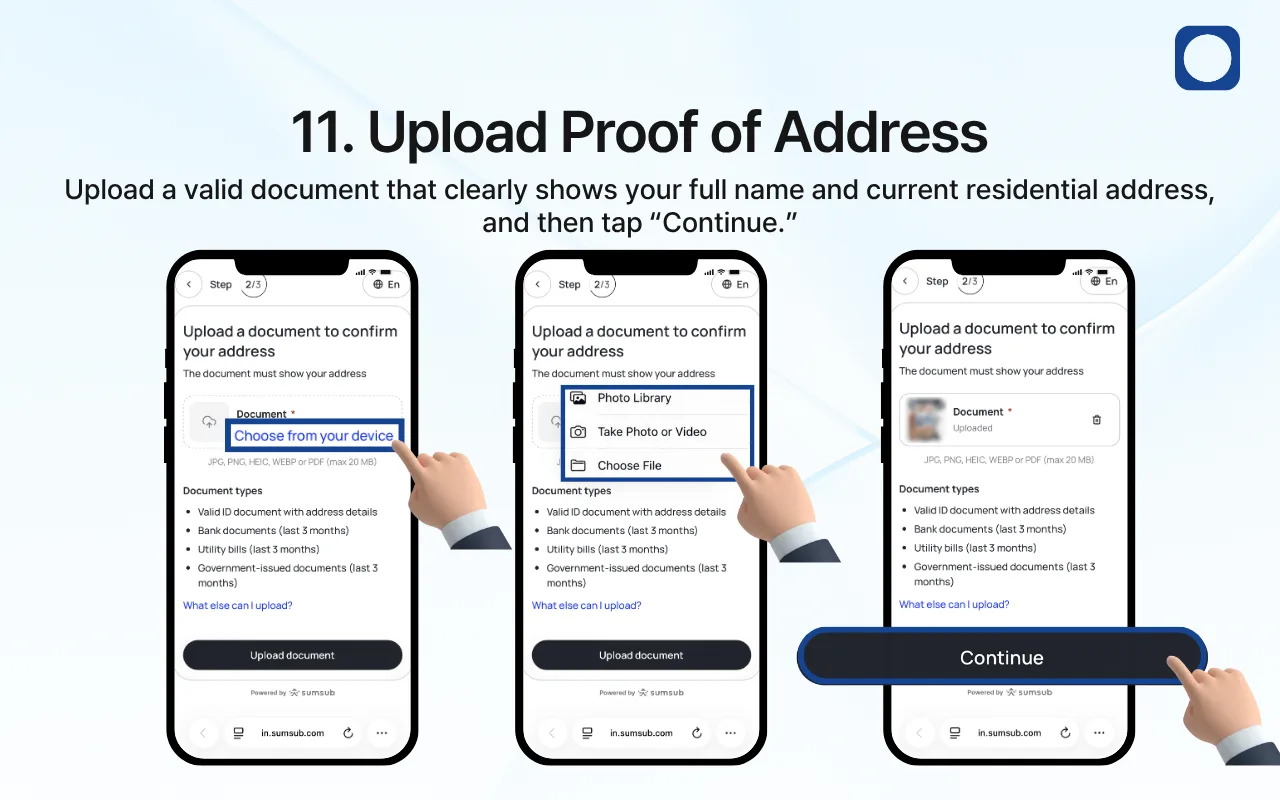
11. Upload Proof of Address
Upload a valid document that clearly shows both:
Your full name
Your current residential address
Accepted documents may include:
A valid identity document showing your address
A bank statement issued within the last three months
A utility bill issued within the last three months
A government-issued document issued within the last three months
The name and address on the document should match the information associated with your Orbis Securities account.
Tap “Choose from your device” and select the document from your photo library or files. You may also take a new photo if that option is available.
Supported file formats may include JPG, PNG, HEIC, WEBP, and PDF, with a maximum file size of 20 MB.
Before continuing, make sure that:
The entire document is visible.
Your name and address are clear and readable.
The document is valid and sufficiently recent.
The image is not blurred, cropped, edited, or password-protected.
After the document has been uploaded successfully, tap “Continue.”
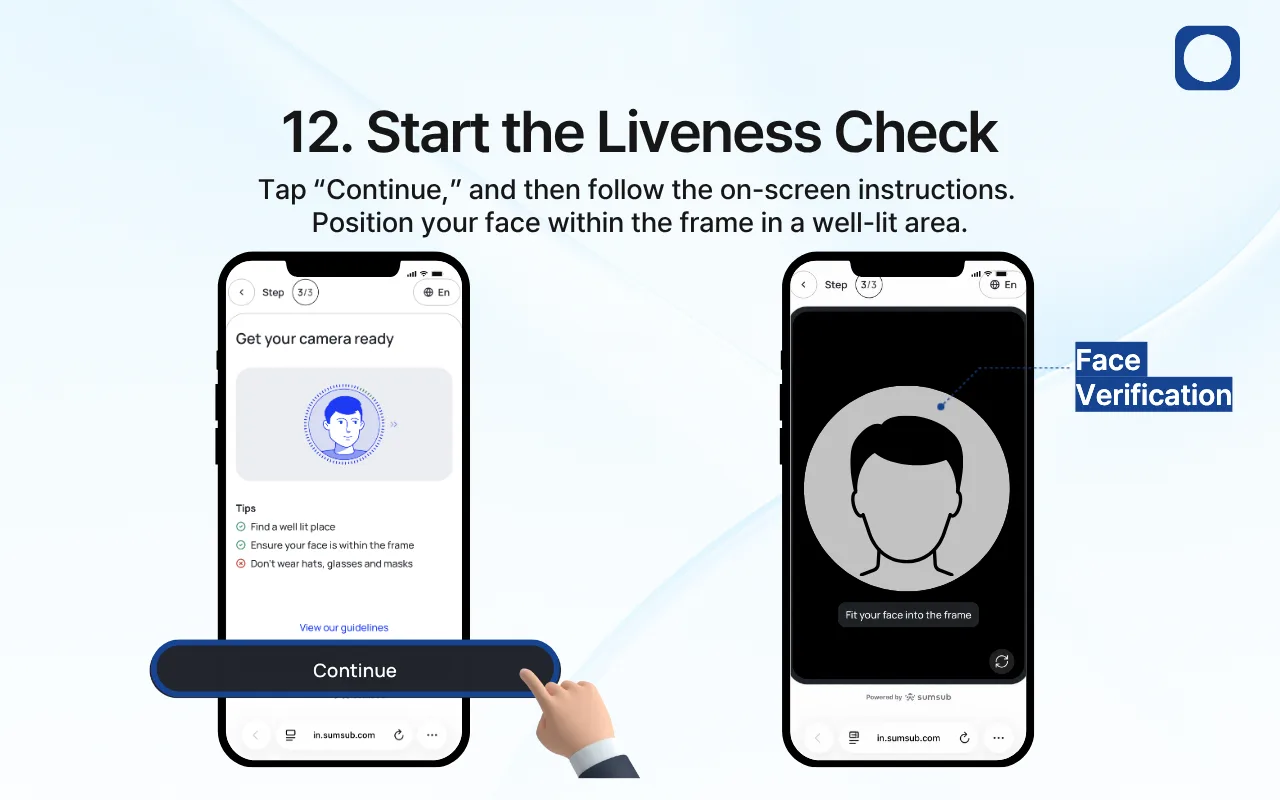
12. Start the Liveness Check
The liveness check confirms that you are physically present and that the submitted identity document belongs to you.
Before starting:
Move to a well-lit area.
Remove hats, sunglasses, face masks, and other items covering your face.
Make sure your entire face is visible.
Hold your phone at eye level.
Follow the on-screen instructions carefully.
Tap “Continue” and position your face within the frame.
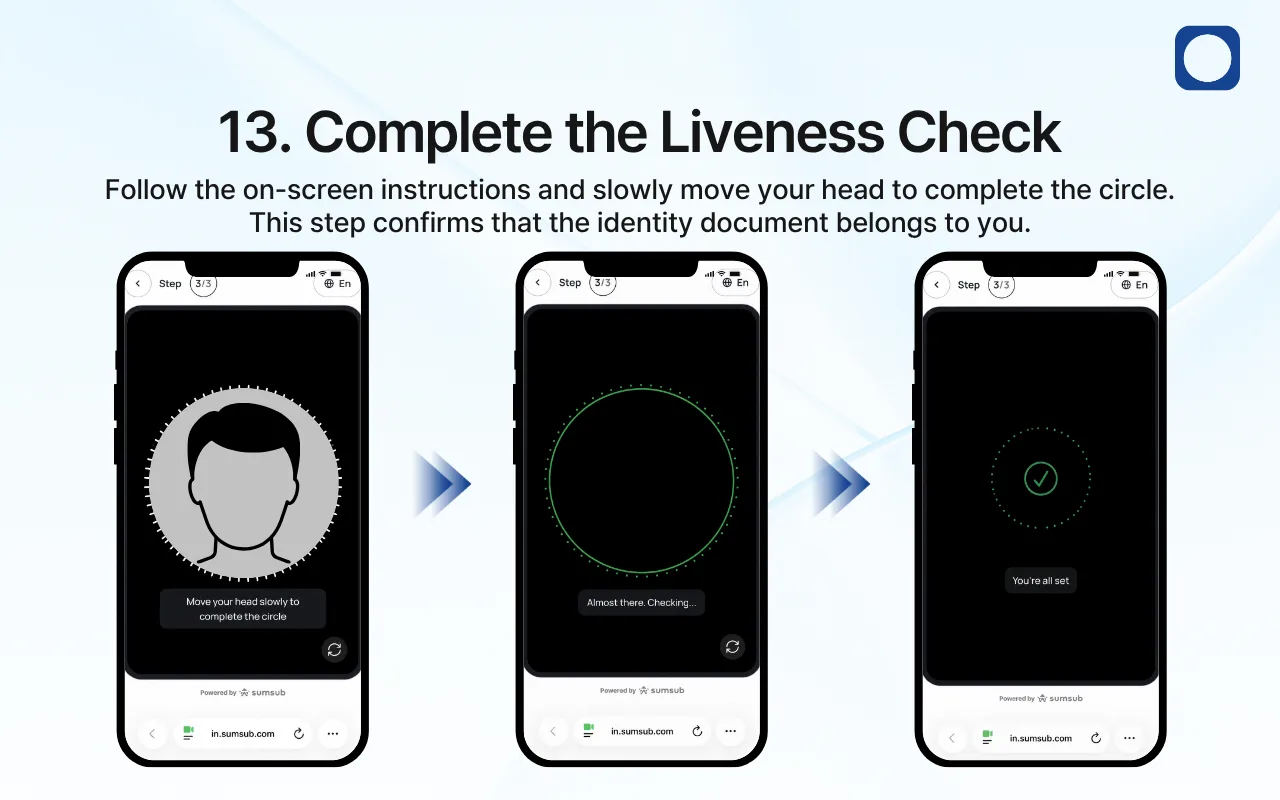
13. Complete the Liveness Check
Keep your face inside the on-screen frame and slowly move your head as instructed.
You may be asked to move your head to complete the circle shown on the screen. Move naturally and avoid sudden movements.
Remain still while the system checks the result. When the liveness check has been completed successfully, a confirmation message will appear.
If the check is unsuccessful, improve the lighting, clean your camera lens, make sure your face is unobstructed, and try again.
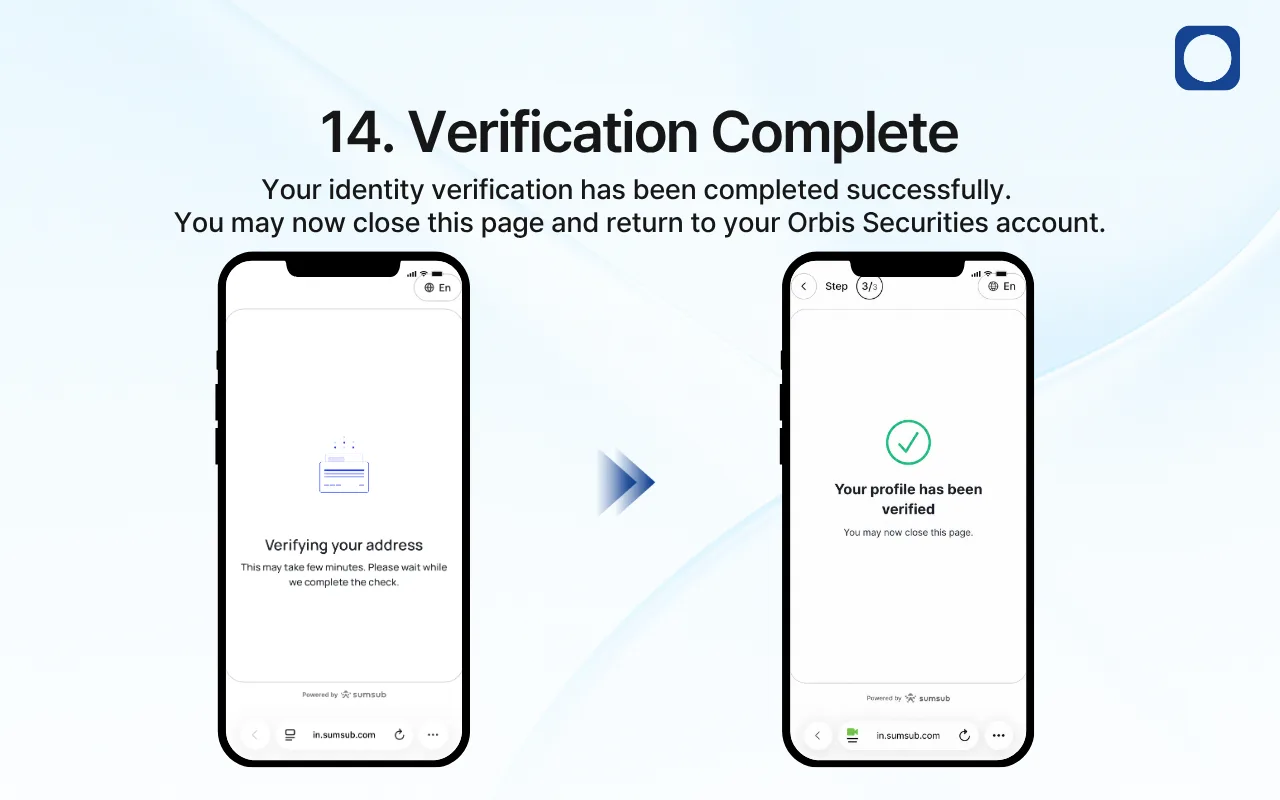
14. Verification Complete
After all required information and documents have been submitted, the system will review your identity and proof-of-address documents.
The review may take a few minutes. Keep the page open while the message “Verifying your address” is displayed.
When the review has been completed successfully, the message “Your profile has been verified” will appear. You may then close the verification page and return to your Orbis Securities account.
If additional information or a new document is required, follow the instructions displayed on the screen or sent to your registered email address.
Once your identity verification has been approved, you can continue using eligible Orbis Securities services, including opening a trading account, depositing funds, and accessing available trading platforms.