
You can change your Client Portal password from the Settings page after signing in to your Orbis Securities account.
For security, choose a strong password that you do not use for any other account. You will need to know your current password to complete this process.
Note: If you have forgotten your current password and cannot sign in, use the password reset option on the login page instead.
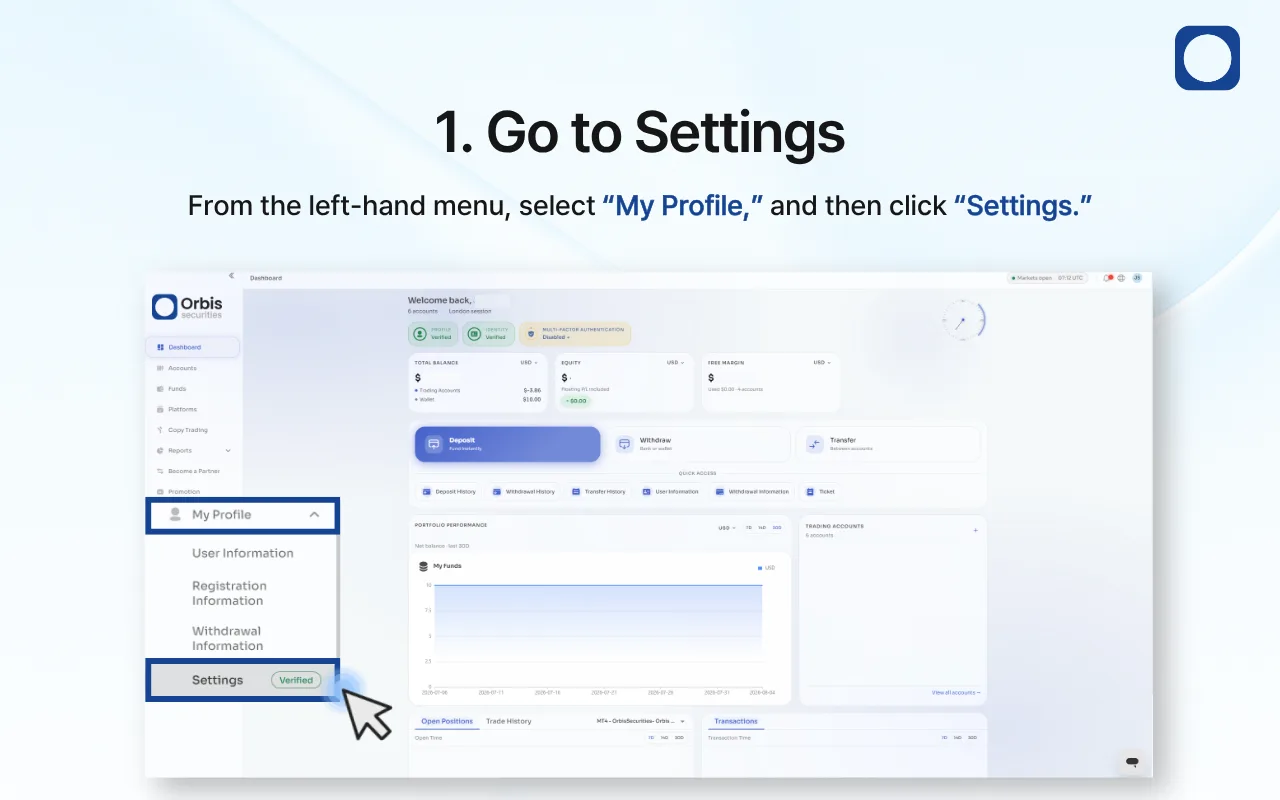
1. Go to Settings
Sign in to the Orbis Securities Client Portal.
From the left-hand menu, select “My Profile,” and then click “Settings.”
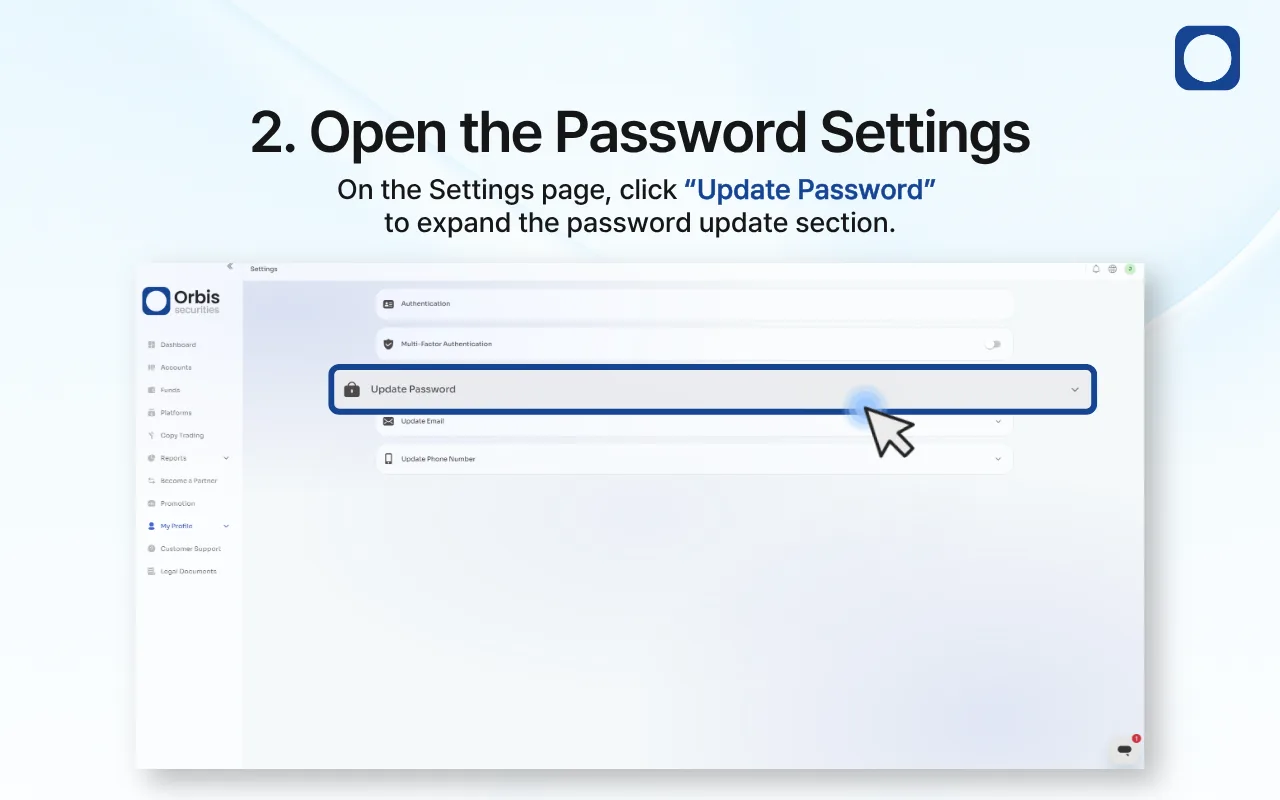
2. Open the Password Settings
On the Settings page, click “Update Password” to expand the password update section.
The form will display the following fields:
Current Password
New Password
Confirm New Password
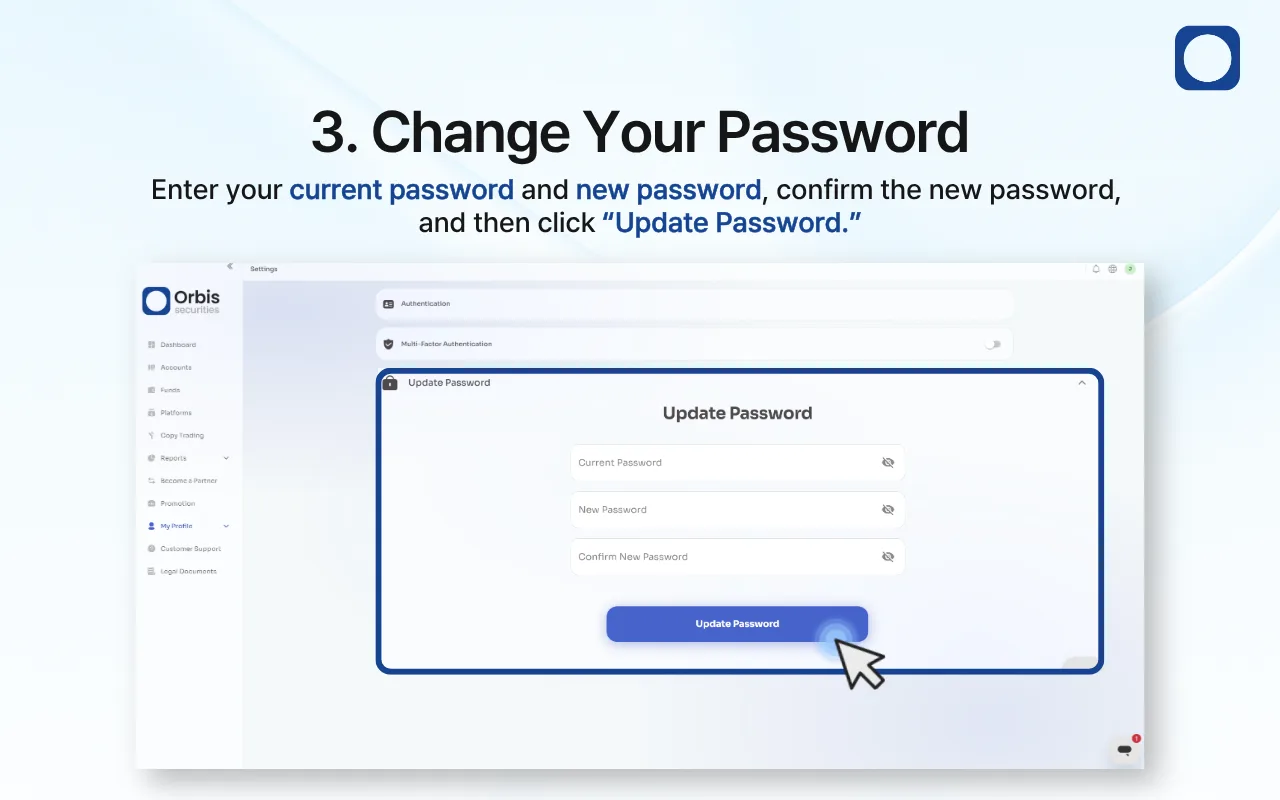
3. Change Your Password
Enter your current password and new password, confirm the new password, and then click “Update Password.”
Make sure that:
Your current password is entered correctly.
The new password meets the displayed password requirements.
The entries in “New Password” and “Confirm New Password” match.
After the password has been updated, use your new password the next time you sign in.